

| A | B | C | |
|---|---|---|---|
| 1 | Product | Qty | Price |
| 2 | Laptop | 12 | 950 |
| 3 | Mouse | 45 | 20 |
| 4 | Keyboard | 18 | 55 |
| A | B | C | |
|---|---|---|---|
| 1 | Product | Qty | Price |
| 2 | Laptop | 15 | 950 |
| 3 | Mouse | 45 | 20 |
| 4 | Keyboard | 20 | 60 |
Compare Excel Sheets
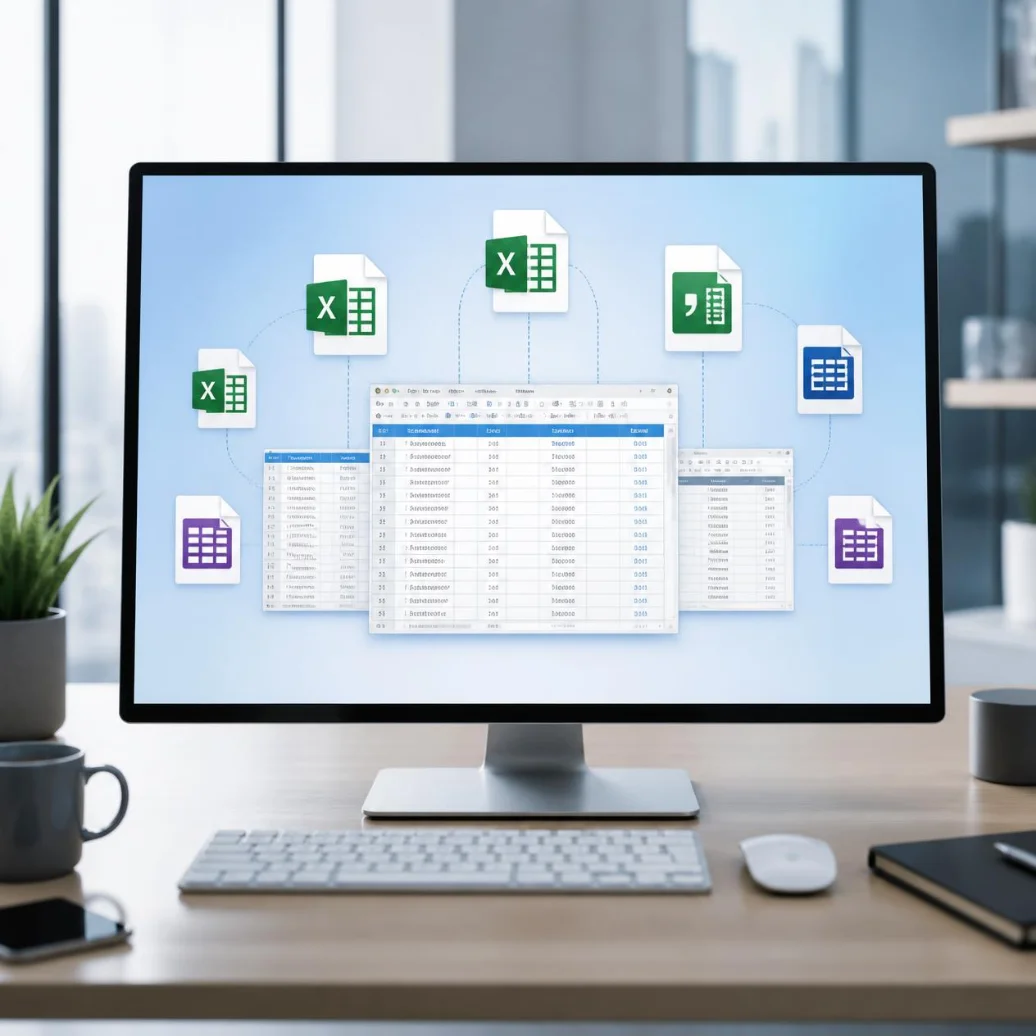
Compare two Excel Sheets or files to detect secure differences in data, formulas, rows, and columns. The supported file formats include: XLSX, XLS, CSV, SYLK, ODS, FODS, RTF Tables, TSV, and other Excel-type formats. You can also download or export highlighted results in multiple formats: PDF, HTML, ODS, and XLSX.
xlsx, xls, csv, tsv, ods, fods, rtf, sylk, dif, prn, etc
xlsx, xls, csv, tsv, ods, fods, rtf, sylk, dif, prn, etc
We know it is very tiring to find differences manually in XLSX files, and you’re definitely looking for a quick way to compare two data sets online. Our Compare Excel Sheets online tool is the perfect solution for you. It highlights all Excel differences, tracks edits, and reviews updates instantly.
We know it is very tiring to find differences manually in XLSX files, and you’re definitely looking for a quick way to compare two data sets online. Our Compare Excel Sheets online tool is the perfect solution for you. It highlights all Excel differences, tracks edits, and reviews updates instantly.
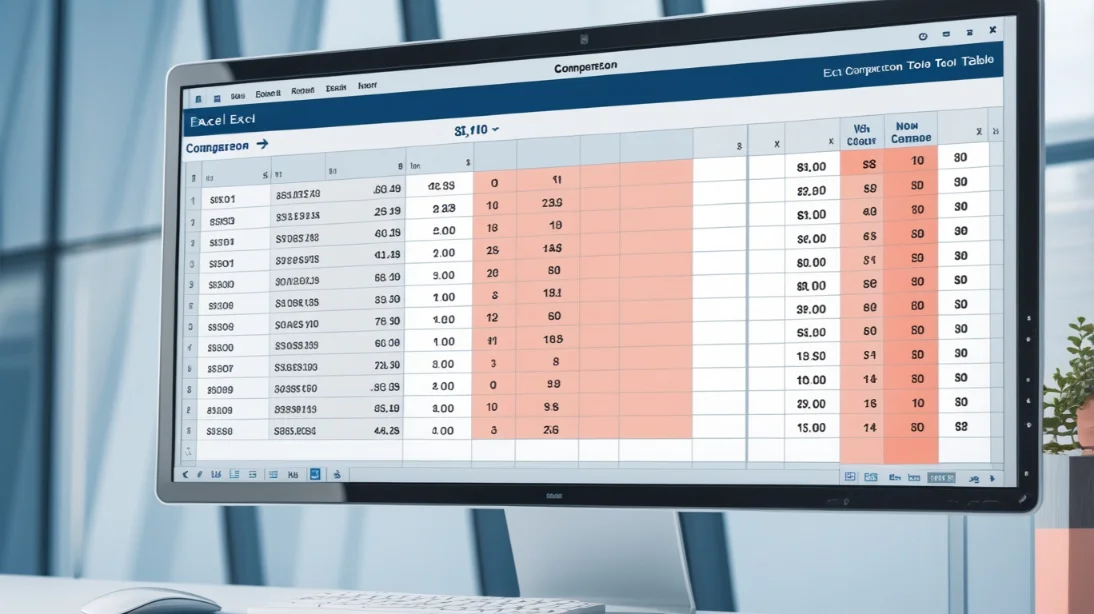

What is Excel Comparer Tool?
It is a software designed to compare XLSX files, data, formulas, and all other Excel elements. It enables users to search for changes in various sheet versions.
How to Compare Excel Sheets Online?
You can compare by uploading files, configuring settings, and then checking the results.
Upload Excel File
Upload or drag and drop your original and modified Excel files.
Configure Settings
Select target sheets and adjust comparison options.
Click Compare
Start the comparison and view highlighted differences instantly.
Export Result
Download your comparison report for offline use.
Supported File Formats:
This comparing tool supports Excel, Spreadsheets, OpenDocument (ODS) files, and other formats.
Excel Files or
Spreadsheets:
XLSX, XLS, XLSM,
XLSB.
OpenDocument
Spreadsheets:
ODS, FODS.
CSV Files:
CSV, PRN.
Other Formats:
RTF Tables, SYLK
Files, DIF Files.
Export Options:
Excel Comparing Tool Key Features:
The tool offers multiple attributes to make your journey with us satisfying.
Compare Entire Worksheet:
You can compare entire worksheets, columns, and cells of all formats.
Formula Comparison:
You can also track changes and formula comparisons for precise updates.
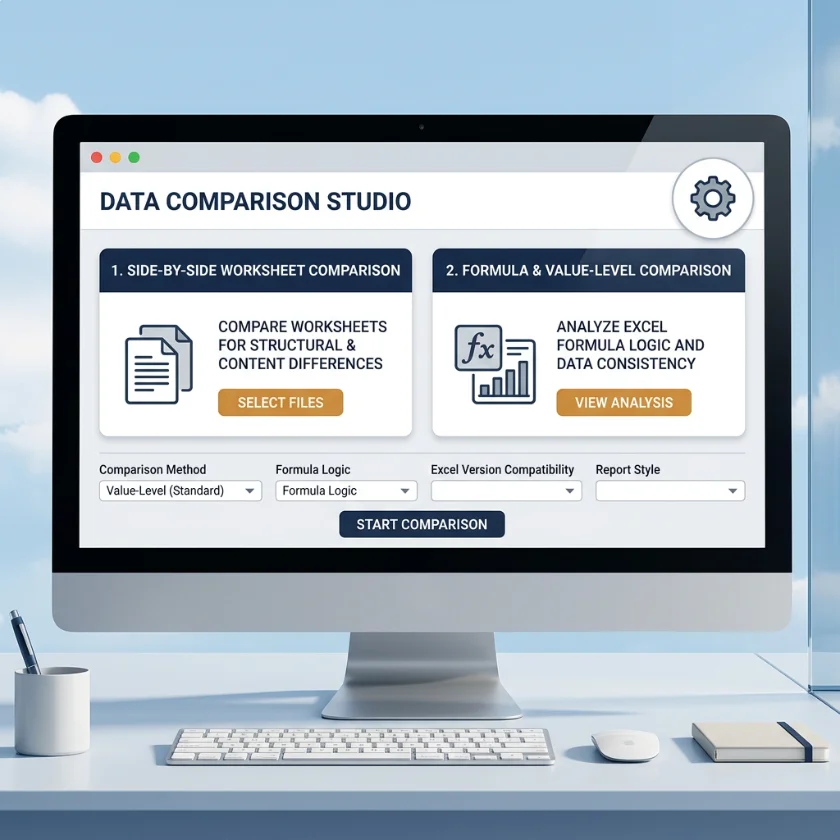
Clear Difference Highlighting:
Our Compare Excel Sheets tool performs side-by-side comparisons in table view. Then mark differences with clear visibility.
Multiple UI Options:
This tool has a dark mode option, multiple layout features, and UI options. It supports an easy spreadsheet grid interface for comfortable use.
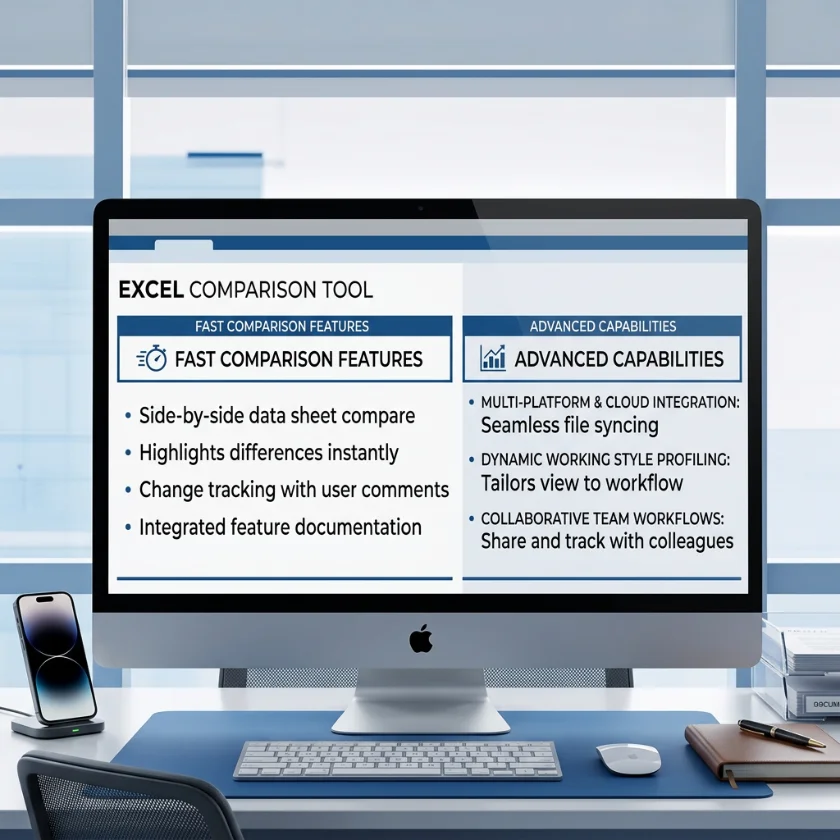
Fast Comparison:
This workbookDiff tool also shows a quick dynamic change list and merged modifications for fast, easy review. Users can also select various sheets for workbooks.
Multi-Platforms Working:
Our sheets comparison tool has minimized navigation that works across various platforms. You can also share results with anyone online.
How Are Differences Highlighted?
|
+++ |
New row added |
|
— |
Row removed |
|
–> |
Cell value changed |
|
: |
Row moved/reordered |
|
@@ |
Header row detected |
How to compare formulas in the Excel files?
You can easily check whether two columns have the same values in Microsoft Excel by using a simple IF formula. Type this formula in a new column: =IF(A2=B2,"Match",""). This formula compares the value in column A2 with the value in column B2.
If both values are the same, the sheet will display “Match” in that row. If the values are not identical, the cell will stay blank. This makes it very easy to scan your sheet and quickly identify which rows contain the same data in both columns. This saves time.

Excel Compare User Benefits:
|
Subscription free |
Spreadsheet-style grid |
|
Can load data files from cloud storage |
Compare Excel sheets with or without header rows |
Security and Privacy:
|
Secure Data Handling |
Private File Comparison |
|
CGDPR Compliance |
Automatic File Deletion |
|
No Signup Required |
Accurate Results |

Tips For Best Results:
This tool is totally cost-free, ensures safety, and anyone can use it without needing to learn any technical skills.
Organize your Data
For better results, keep your data structured. Sort the data if possible. Use a similar column layout in both files, and remove unnecessary empty rows or columns.
Header Settings
If your Compare Excel Sheets have column titles, enable “Use First Row as Headers” so the tool can match columns correctly. If your data has no labels, keep this option disabled for a simple comparison.
Handling Large Files
When you’re working with large spreadsheets, always try to compare only the required sheet to improve processing speed. You can also switch to a simpler text view for smoother performance.
Common Use Cases:
|
Academic Paper Corrections |
Track Research Paper Changes |
|
Legal Documents Version Comparison |
Spot Technical Document Updates |
|
Contract Review |
Track Educational Content Updates |
Frequently Asked Questions
Conclusion:
Our Compare Excel Sheets assist you in analyzing two table files side by side, highlighting differences and ensuring accurate comparisons. No software installation is required. You can easily track changes across diffrent versions of spreadsheets, anywhere, anytime. Whether for work, school, or personal use, enjoy fast, cross-platform, and free comparison now!